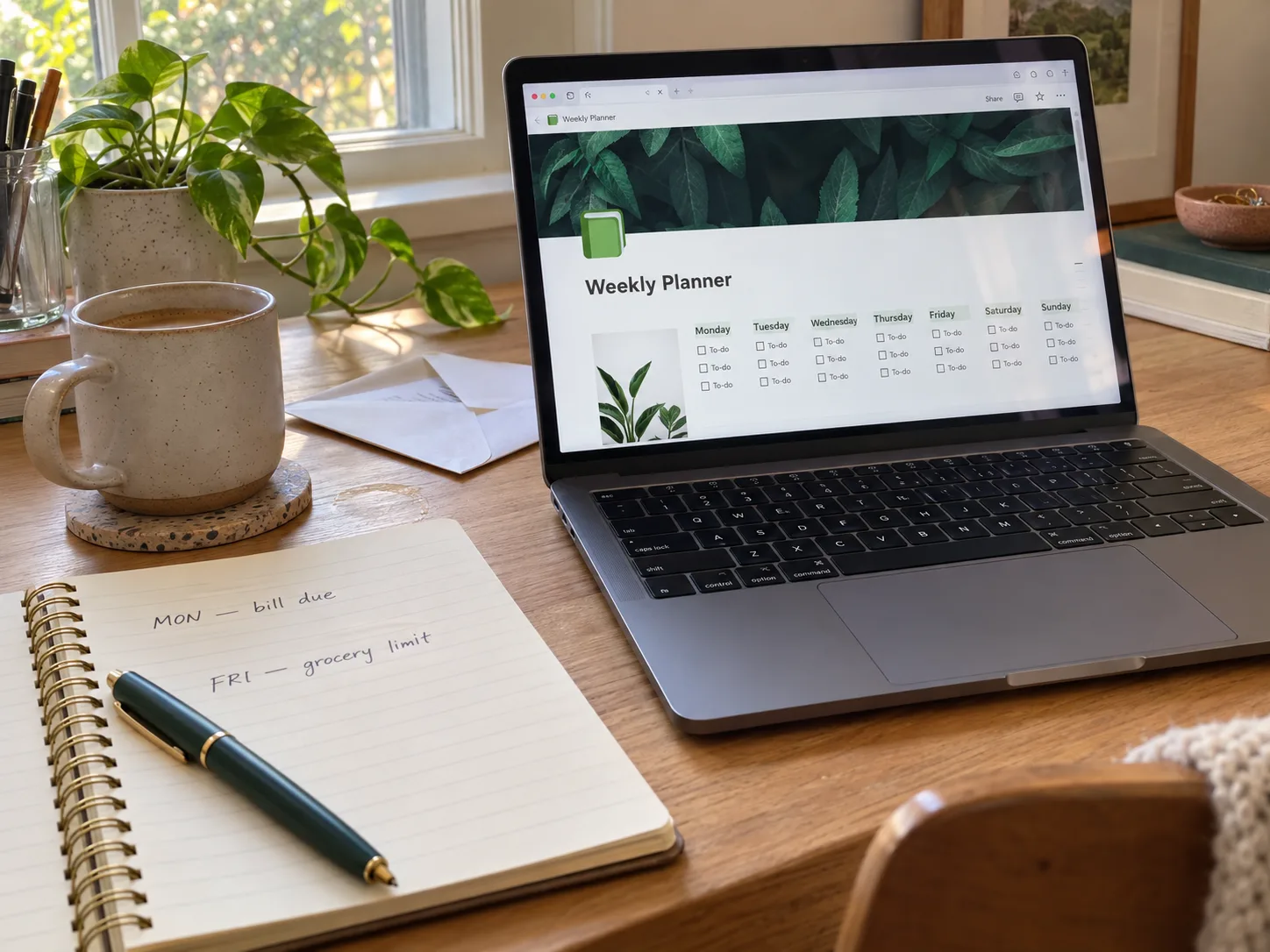
Keep one week sentence, three priorities, dated tasks, fixed commitments, and a three-line money strip in view. The page coordinates the week without replacing your full budget.
A weekly planner should make the next seven days easier to understand. It should not become another place where tasks, bills, and goals disappear into separate lists.
The most useful setup is one calm weekly page with three jobs: show what matters, show what is already committed, and show the few money decisions that cannot wait until next week. You can build that page in Notion without turning it into a full finance dashboard.
The quick answer
Keep six blocks visible on your weekly page:
- one sentence that defines the week;
- three priorities with clear finish lines;
- a Monday-to-Sunday task view;
- fixed dates and appointments;
- a compact money strip for bills, a spending limit, and one action;
- a small parking area for notes that need sorting later.
The page does not need to hold every transaction or every project detail. It only needs enough information to help you decide what belongs in this week.
Why put tasks and money in one weekly view?
Money decisions rarely happen in isolation. A bill is due on the same Wednesday as a deadline. A grocery limit matters before the weekend shop, not at the end of the month. A transfer to savings may need to happen after payday but before flexible spending expands.
A monthly budget still matters. Consumer.gov describes a budget as a written plan for how you will use the money you make, based on your bills and other expenses. The weekly page serves a different purpose: it brings only the time-sensitive parts of that plan into the same view as the week you are actually living.
The CFPB bill-calendar guidance makes a similar timing distinction. A calendar helps you see when bills are due and compare weekly bill totals with weekly income. Your Notion weekly planner can use that idea without becoming an accounting system.
Your bank, lender, bill statement, and full budget remain the source of the numbers. The weekly page is a decision surface. It shows what needs attention; it does not replace official balances or records.
The six-block weekly layout
1. Write one sentence for the week
Start with a short sentence that describes the result you want by Sunday. This is not a slogan. It is a boundary.
Useful examples include:
- Finish the client draft and keep Friday free for revisions.
- Cover the utility bills before planning weekend spending.
- Prepare the application without neglecting the normal household week.
If the sentence contains five unrelated outcomes, reduce it. The page should help you notice tradeoffs, not hide them.
2. Choose three real priorities
Mark no more than three items as weekly priorities. Other tasks can still appear in the planner, but the priorities should be visually easy to find.
Write each priority as a finish line:
| Too vague | Clear weekly finish line |
|---|---|
| Budget | Check the next seven days of bills and set the grocery limit |
| Work on proposal | Send the complete first draft by Thursday |
| Save money | Transfer $40 after Friday's paycheck |
A clear finish line makes it easier to schedule the task and easier to recognize when it is done.
3. Show tasks by day, not as one endless list
A weekly view works best when a task has a realistic place in the week. Put fixed deadlines first. Then place the three priorities. Add smaller work only after those commitments are visible.
In Notion, a database can display the same information in different views. The official Notion documentation explains that you can use table, board, calendar, list, timeline, and other views, with filters and sorting to surface the information you need. For a personal weekly page, a simple list or table filtered to the current week is often enough.
Do not assign every task to Monday because you want an energetic start. Spread work according to deadlines, available time, and normal energy. Leave room for work that takes longer than expected.
4. Add the fixed calendar strip
Keep appointments, payment dates, school events, and deadlines in a narrow calendar area. These are constraints, not aspirations.
If you use a Notion database with a date property, Notion says those entries can also be viewed and managed in Notion Calendar. You do not need that integration to use this method, but dates should be real dates rather than reminders buried in notes.
Check each fixed item for three things:
- the correct day and time;
- any preparation that needs its own task;
- any money that must be available before the event.
5. Build a three-line money strip
The money strip is deliberately small. It does not duplicate your full budget. Use three lines:
If no bill is due, write “none due” instead of filling the space with extra metrics. If several categories need attention, the full review belongs in your budget or a separate weekly money check-in.
6. Keep a small parking area
Use one small section for ideas, requests, and tasks that appear during the week but have not been assigned. Process it during the next weekly reset.
This section should remain temporary. If it becomes a permanent collection of unsorted notes, it will stop protecting your attention.
How to build the page in Notion
Start with the simplest working version
Create a page for the week. Add the week sentence and three priority checkboxes at the top. Under them, add the calendar commitments and three-line money strip. A plain page is enough for the first test.
If you already use a task database, add a linked view filtered to the current week. Official Notion guidance notes that a linked view can show a subset of an existing database while changes to its entries remain reflected in the original source. That lets you see weekly tasks without building a second task system.
Use only properties that change a decision
A task database may need only:
- task name;
- date;
- status;
- priority;
- project, only if projects already exist in your system.
Do not add effort scores, energy labels, contexts, formulas, and multiple tags before you know that they solve a recurring problem.
Do not copy your whole financial history
Enter only the numbers needed for this week. The grocery limit can come from your monthly budget. Bills can come from statements or your bill tracker. The action can come from your last money review.
When a number changes, update the original record first. Then update the weekly strip if the change affects a decision.
A realistic weekly example
A normal work-and-household week
The weekly page does not calculate whether the household can afford these numbers. That decision belongs in the budget. The page makes the timing and next actions visible.
Use a 12-minute weekly reset
Set one regular time to prepare the next page. Sunday evening works for many people, but Friday afternoon or Monday morning may fit your schedule better.
- Check the next seven days of calendar commitments.
- Look at deadlines and unfinished tasks.
- Choose the week sentence and three priorities.
- Check statements or your bill tracker for due dates.
- Add one flexible spending limit and one money action.
- Move or delete anything that does not belong in the week.
Twelve minutes is a target, not a promise. The first setup may take longer. Once the structure is familiar, the reset should remain short enough to repeat.
How this differs from a daily planner
| Weekly planner | Daily planner |
|---|---|
| Chooses the important outcomes for seven days | Chooses the next actions for today |
| Shows due dates, appointments, and workload across the week | Shows today's time anchors and focus blocks |
| Includes the week's bills and one money decision | Includes only a money task that must happen today |
| Resets once each week | Opens and closes each day |
If you already use the simple Notion daily planner setup, the weekly page should feed it. Choose today's actions from the weekly priorities instead of creating a second unrelated list.
The approved weekly planner template
The approved Notion Template - Weekly Planner by tagredelgak is a simple Notion starting point. Its public Creative Fabrica listing names a Weekly Overview, Tasks Ticker, Habit Tracker, notes for ideas and reflections, and a calendar. It is described as customizable and delivered with access to the Notion template plus a PDF guide containing the duplication link.
The public listing does not claim that the template includes a budget, finance tracker, formulas, or the three-line money strip described in this article. Add that strip yourself only if it helps you make weekly decisions. The product was not purchased or duplicated for this review, so its internal database behavior was not independently tested.
Explore this weekly Notion template
Consider it if you want a clean weekly overview with tasks, habits, notes, and a calendar, and you are comfortable adding your own small money block. Skip it if you need a ready-made finance database or verified budgeting formulas.
View the planner details →What to check before choosing any weekly template
- Can you remove sections you will not use?
- Can you see all seven days without losing the three priorities?
- Can tasks carry a real date and status?
- Can you add a small money section without rebuilding the page?
- Does the template duplicate into your own Notion workspace correctly?
- Will you still understand the page when it contains a normal, imperfect week?
Common weekly-planner mistakes
Calling everything a priority
Seven priorities are a task list with a stronger label. Choose three outcomes that deserve protection. Keep the remaining tasks visible but secondary.
Copying the whole monthly budget
The weekly page should show timing and action. Keep categories, historical spending, account details, and monthly analysis in the appropriate financial record.
Rolling every unfinished task forward
Review unfinished work. Give it a new date, reduce it to a smaller action, return it to a project, delegate it, or delete it. Automatic rollover slowly turns the planner into a record of avoidance.
Decorating before testing
Use the page for two ordinary weeks before adding widgets or visual sections. A calm layout is useful only when the information inside it supports decisions.
Frequently asked questions
Do I need a Notion database?
No. A simple page with headings and checkboxes can test the method. A database becomes useful when you want dates, statuses, filters, reusable views, or links to projects.
How many money numbers should appear?
Usually three are enough: bills due, one flexible limit, and one action amount. Add another number only when it changes a decision this week.
What if there is no payday this week?
Keep the bill due dates and spending limit. The action may be checking a balance, reviewing a renewal, requesting a reimbursement, or simply confirming that no transfer is needed.
Should habits share the weekly page?
Only habits you actively review. A short row can be useful. A large habit system can push the tasks and money decisions below the fold.
Start with next week, not the perfect system
Create one weekly page. Add one sentence, three priorities, the fixed calendar commitments, and a three-line money strip. Use it for seven days. At the end of the week, remove what you ignored and keep what helped you decide.
A weekly planner is useful when it makes separate parts of life easier to coordinate. You do not need every detail in one place. You need the right details in view before the week makes the decisions for you.
Sources
- Notion Help: Database views, filters, sorts, and groups
- Notion Academy: Linked views
- Notion Help: Use Notion Calendar with Notion
- Consumer.gov: Making a Budget
- Consumer Financial Protection Bureau: Your Money, Your Goals toolkit
- Creative Fabrica: Notion Template - Weekly Planner
Written by Calm Budgets