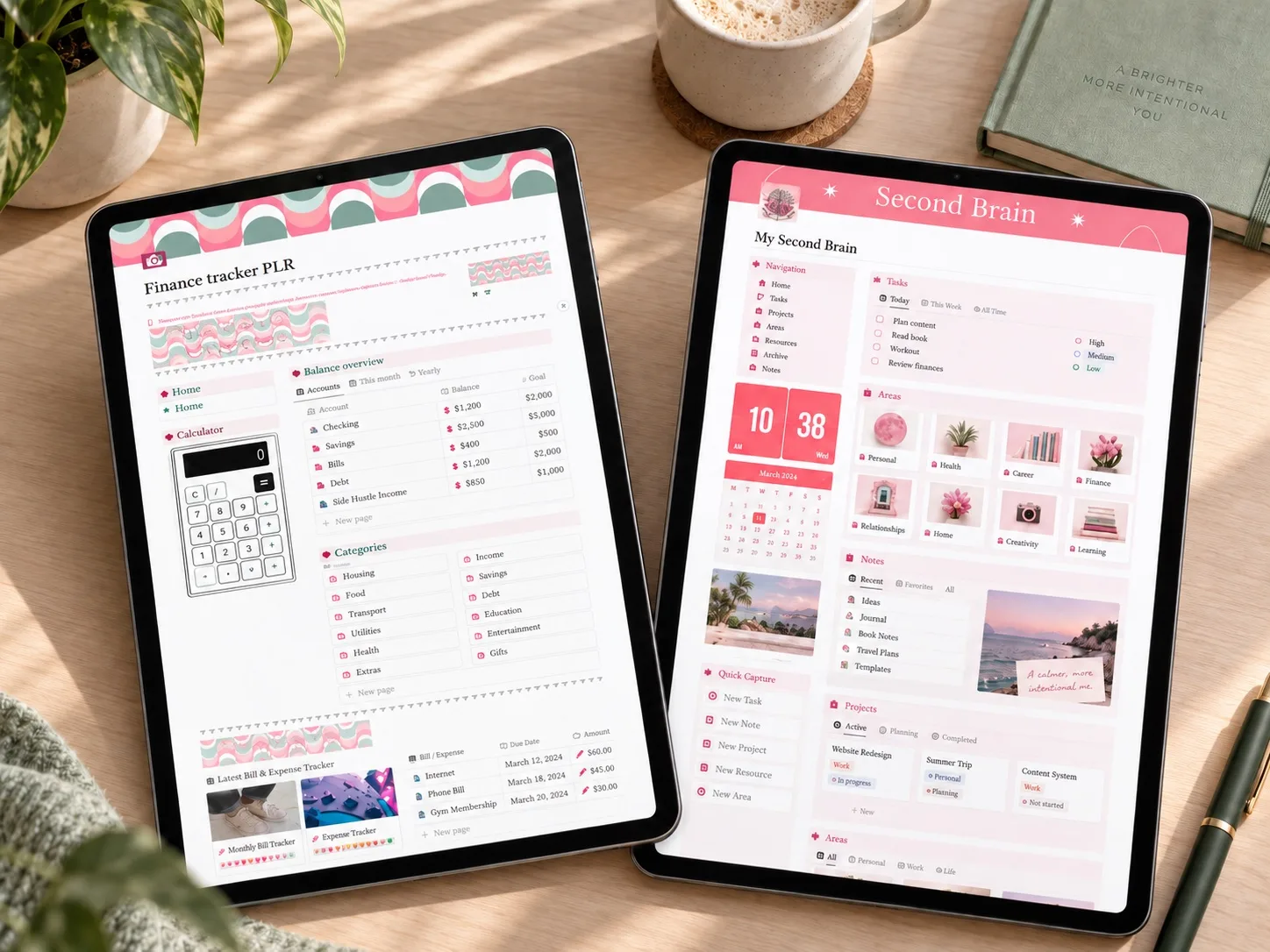
A subscription list becomes useful when it shows the next actual charge, a separate review deadline, and the decision you need to make before renewal.
Subscriptions rarely damage a budget in one dramatic moment. They do it quietly: a free trial becomes paid, an annual plan renews on an old card, and three small monthly charges blend into everything else on the statement.
A subscription tracker template gives those charges one place to live. The useful version is not merely a list of services. It shows what will renew next, what it costs in comparable monthly terms, where the charge lands, and what decision you need to make before the billing date.
This guide focuses on building that working template in Notion. If you first need to find every recurring charge and decide what to cancel, start with our separate guide to stopping subscription creep. Here, the job is narrower: turn the subscriptions you have found into a system you can review before money leaves your account.
A useful subscription tracker needs the actual charge, billing frequency, next renewal date, a separate review-by date, payment account, and a clear keep, review, cancel, or trial status. Keep the real charge visible even when you calculate a monthly equivalent.
The six questions a useful subscription tracker should answer
Before choosing colors, icons, or a dashboard layout, make sure the tracker answers six practical questions:
- What is the service? Use the name that appears on your bank statement when possible.
- How much does it cost? Record the actual amount charged, including tax if it is consistent.
- How often are you billed? Monthly, quarterly, annually, or after a trial.
- When is the next renewal? This is the date that turns a list into a forward-looking tool.
- Where will it be charged? Card, bank account, PayPal, Apple, Google, or another billing account.
- What will you do before it renews? Keep, review, cancel, downgrade, or switch to a different plan.
If a template cannot answer those questions at a glance, it may look organized without actually preventing surprise renewals.
The Notion properties worth creating
Use one Notion database with each subscription as a separate entry. You do not need a complicated workspace. A clean database with a few deliberate properties is enough.
1. Subscription name
Make the service name the title property. If the merchant appears under an unfamiliar billing name, add that billing descriptor in parentheses so you can match the tracker to a statement later.
2. Cost
Use a number property formatted as currency. Enter the charge for one billing cycle rather than an estimated monthly amount. A yearly plan that charges $120 should be recorded as $120, not $10, so you still know what will actually leave the account on renewal day.
3. Billing frequency
Create a select property with a short list such as:
- Monthly
- Quarterly
- Annual
- Trial
- Other
Keeping this controlled makes it easier to filter annual renewals separately from ordinary monthly charges.
4. Monthly equivalent
Add a second number or formula property for comparison. Divide annual plans by 12 and quarterly plans by 3. The original cost tells you what the next charge will be; the monthly equivalent helps you compare services that bill on different schedules.
For example, a $120 annual subscription and a $12 monthly subscription do not have the same impact. Their monthly equivalents are $10 and $12, while their next actual charges remain $120 and $12.
5. Next renewal date
Use a date property. This is the most important field in the system. Without it, you can see how much you spend but not when you still have time to act.
When adding an annual plan, verify the renewal date in the provider account or original receipt rather than guessing from the most recent statement.
6. Review-by date
The renewal date and the decision date are not always the same. Some services require notice before cancellation, and even a simple cancellation can take time if you need to export data or move files first.
Create a review-by date several days or weeks before renewal. Choose the lead time from the actual terms of the service; do not assume every subscription can be cancelled on the renewal day.
7. Status
Use a status or select property with options such as:
- Keep
- Review
- Cancel
- Trial
- Cancelled
“Review” is useful when you have not made a decision yet. It prevents the tracker from forcing every service into a false keep-or-cancel choice.
8. Payment account
Record only a safe label such as “Visa ending 42,” “PayPal,” or “Apple account.” Never store a full card number, password, security code, or other sensitive login information in the tracker.
9. Cancellation link and notes
Save the account-management or cancellation page and add one short note about the process. If you cancel, record the date and keep the confirmation outside the tracker where you normally store receipts.
The U.S. Federal Trade Commission advises keeping a copy of a cancellation request and watching statements for charges after cancellation. If an unauthorized charge continues, its consumer guidance explains how to contact the company and dispute the charge with the card issuer.
Four views that make the tracker useful
A single master table is enough for storage, but filtered views make the database easier to use.
Renewing soon
Show active subscriptions with a renewal or review date in the next 30 days. Sort the nearest date first. This should be the default view you open during a weekly money check-in.
Annual renewals
Filter billing frequency to Annual. Annual charges are easy to forget because they do not appear every month, yet they can create the largest single surprise.
Trials and decisions
Filter status to Trial or Review. This view is not an archive; it is a small decision queue. Clear it before the relevant dates pass.
Monthly cost overview
Show active subscriptions and sum the monthly-equivalent column. Use this total for planning, while keeping the actual billing amounts and dates visible elsewhere.
Do not let the total become the only thing you look at. Two people can spend the same amount on subscriptions but face very different cash-flow problems if one has several annual plans renewing in the same month.
A realistic example
Imagine a tracker with these four entries:
| Service | Actual charge | Frequency | Monthly equivalent | Next renewal | Status |
|---|---|---|---|---|---|
| Streaming plan | $15 | Monthly | $15 | October 19 | Keep |
| Cloud storage | $120 | Annual | $10 | November 4 | Review |
| Fitness app | $60 | Quarterly | $20 | October 27 | Review |
| Design tool trial | $0 now, then $18 | Trial | $18 if kept | October 14 | Cancel |
The monthly-equivalent total is $63 if every plan continues. More importantly, the tracker reveals three different decisions before November: cancel the trial, review the fitness app, and decide whether the annual storage plan still earns its $120 renewal.
This is an illustrative example, not a reported user result.
A 15-minute setup routine
You can build the first usable version without completing a perfect annual audit.
- Open the last two months of bank and card statements.
- Add each obvious recurring charge to the Notion database.
- Check the provider account for the next renewal date and cancellation terms.
- Enter the actual billing amount and frequency.
- Add a review-by date before the renewal.
- Mark the initial status as Keep, Review, Cancel, or Trial.
- Create the Renewing Soon view and sort it by date.
Then check the tracker once a week for two minutes. A lightweight routine is more useful than a detailed database you stop opening.
How this differs from a bill tracker
A bill tracker answers, “Has this required payment been made?” A subscription tracker asks, “Do I still want this recurring service before it charges again?”
Rent, electricity, insurance, and loan payments generally belong in a monthly bill tracker. Entertainment, software, memberships, storage, and free trials belong in the subscription tracker. If a service is both essential and optional in level, track the required payment as a bill and review the plan tier as a subscription decision.
A Notion template you can adapt
The public listing for Notion Template, Notion Life Planner says its Budget area includes a Subscription Tracker, Wallet, Automated Finance Calculator, and Shopping List. It also includes yearly, monthly, weekly, and daily planning pages.
That makes it a possible starting point if you want subscription decisions beside the rest of your planning system. The listing does not show enough detail to confirm the exact tracker properties, formulas, or reminders, so compare the included database with the fields in this guide and add anything missing.
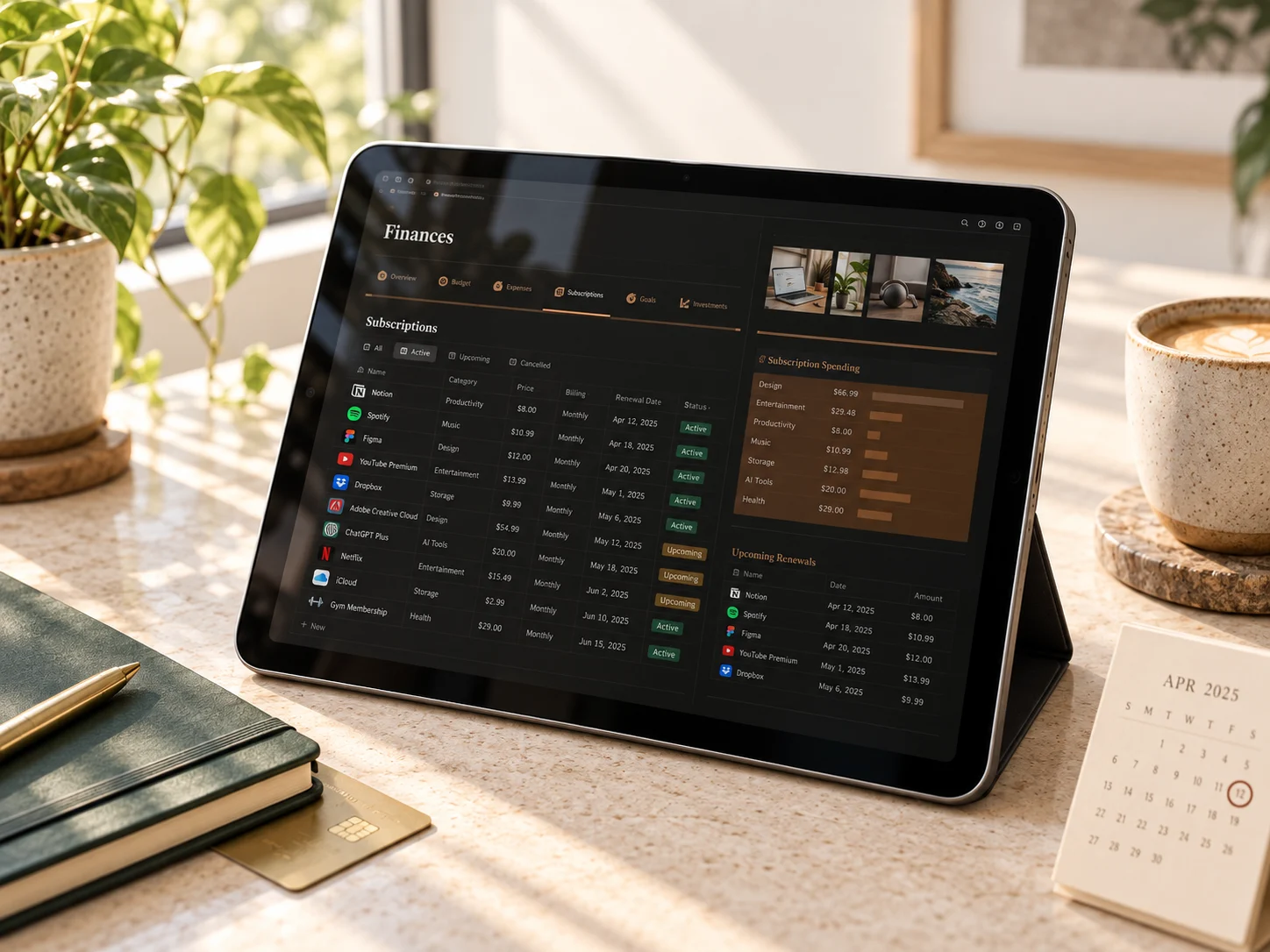 Notion life + subscription planner
Notion Template, Notion Life Planner
A broad Notion life-planning workspace whose public listing includes a Subscription Tracker within its Budget area.
See the Notion planner details →Common mistakes to avoid
Tracking only the price
Price without a renewal date explains past spending but does not create time to act.
Converting everything to a monthly number and hiding the real charge
A $10 monthly equivalent does not prepare the account for a $120 annual debit. Keep both numbers.
Relying on memory for cancellation terms
Check the provider’s current instructions and deadlines. Save the relevant page and confirmation.
Deleting cancelled subscriptions immediately
Move them to a Cancelled view first. The record helps you confirm the expected final charge and notice if billing continues.
Building too many categories
Five broad categories—entertainment, work, storage, health, and other—are usually enough to start. Add detail only when it changes a decision.
Frequently asked questions
Can Notion remind me before a subscription renews?
Notion date properties can be used with reminders, but the exact setup depends on the database and your notification settings. Test the reminder with a near-term date before relying on it for an important cancellation deadline.
How far ahead should I review a renewal?
Use the service’s actual cancellation terms. For a simple monthly service, several days may be enough. Annual contracts, data-heavy tools, or memberships with notice periods may require more time.
Should I include free subscriptions?
Include free trials and any free plan that stores important data. A free trial may convert to paid, and a free service may still require a decision if you plan to move or export information.
What if the amount changes every month?
Record the expected or most recent amount, mark it as variable, and verify the upcoming charge in the provider account. Do not create false precision.
Is it safe to store payment details in Notion?
Use a short account label only. Do not store full card numbers, passwords, security codes, or identity documents in a budgeting template.
Start with the next charge, not the perfect database
Open one statement, add the first recurring charge, and find its next renewal date. Then add the next one. Once the Renewing Soon view contains real dates, the template is already doing its most important job: giving you a decision before the next charge instead of an explanation after it.
Sources
- FTC Consumer Advice: How to stop subscriptions you never ordered
- FTC Consumer Advice: Free trials can be costly
- CFPB: How automatic payments from a bank account work
Written by Calm Budgets